Quick answer
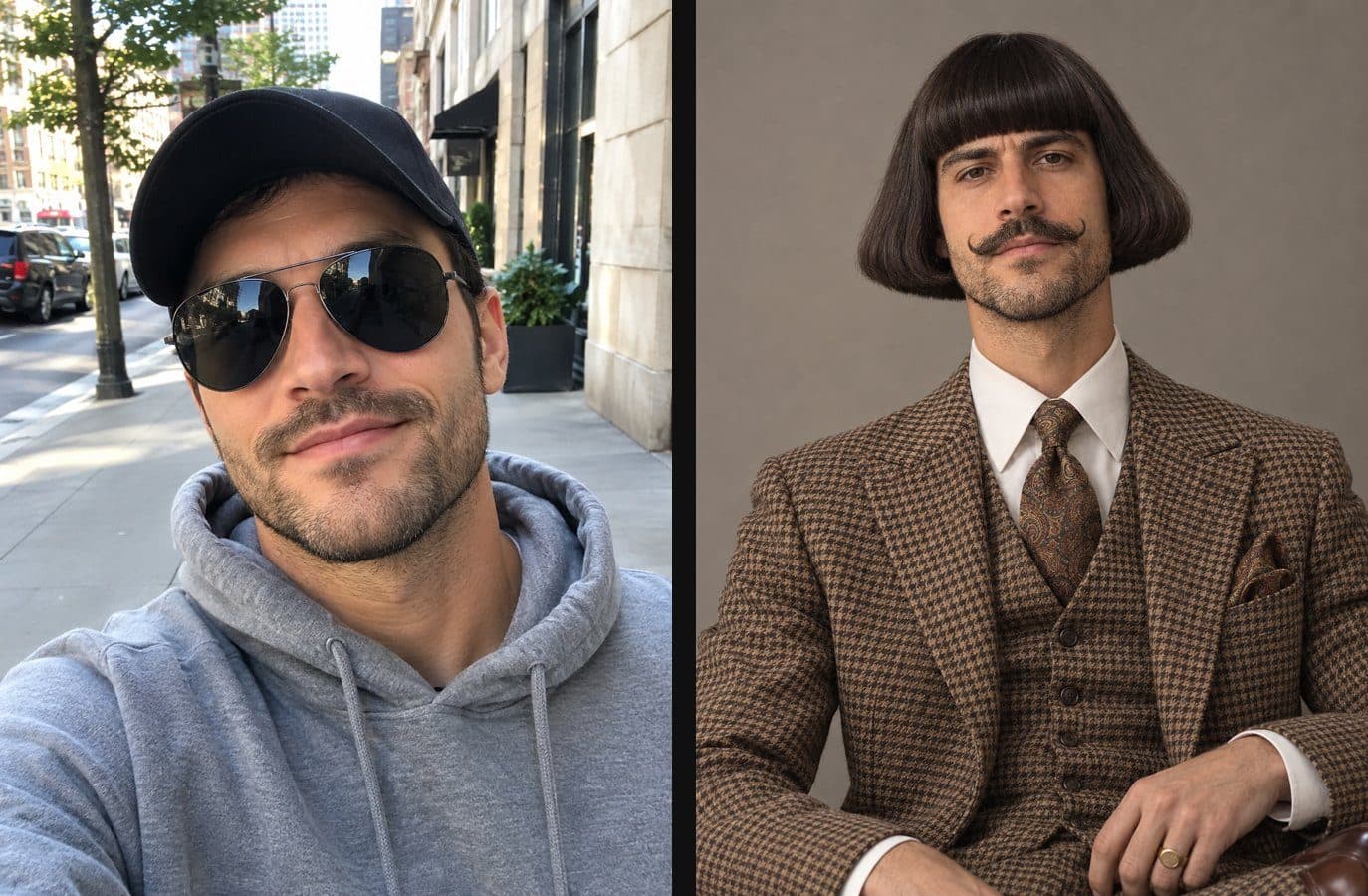
To turn yourself into Jean Phil, open Starrd's Character Studio on the web at www.getstarrd.app/studio/character, pick the character type called The Jean, and upload one selfie. A cap or sunglasses is fine; they get removed. In a few minutes you get a portrait of you with the look: a thick glossy flared bob with a blunt fringe, a waxed handlebar mustache, a brown houndstooth three-piece suit with a patterned tie, pocket square and gold signet ring, a long neck, and a straight face. It keeps your face and your own hair colour, makes a 4-view character sheet so the character stays consistent, and lets you put your Jean into any Starrd video template. It costs 20 credits.
Want to see yourself as Jean Phil? Upload one selfie and Starrd's Character Studio gives you back a portrait of you with the full look: the bob, the handlebar mustache, the houndstooth suit and the straight face.
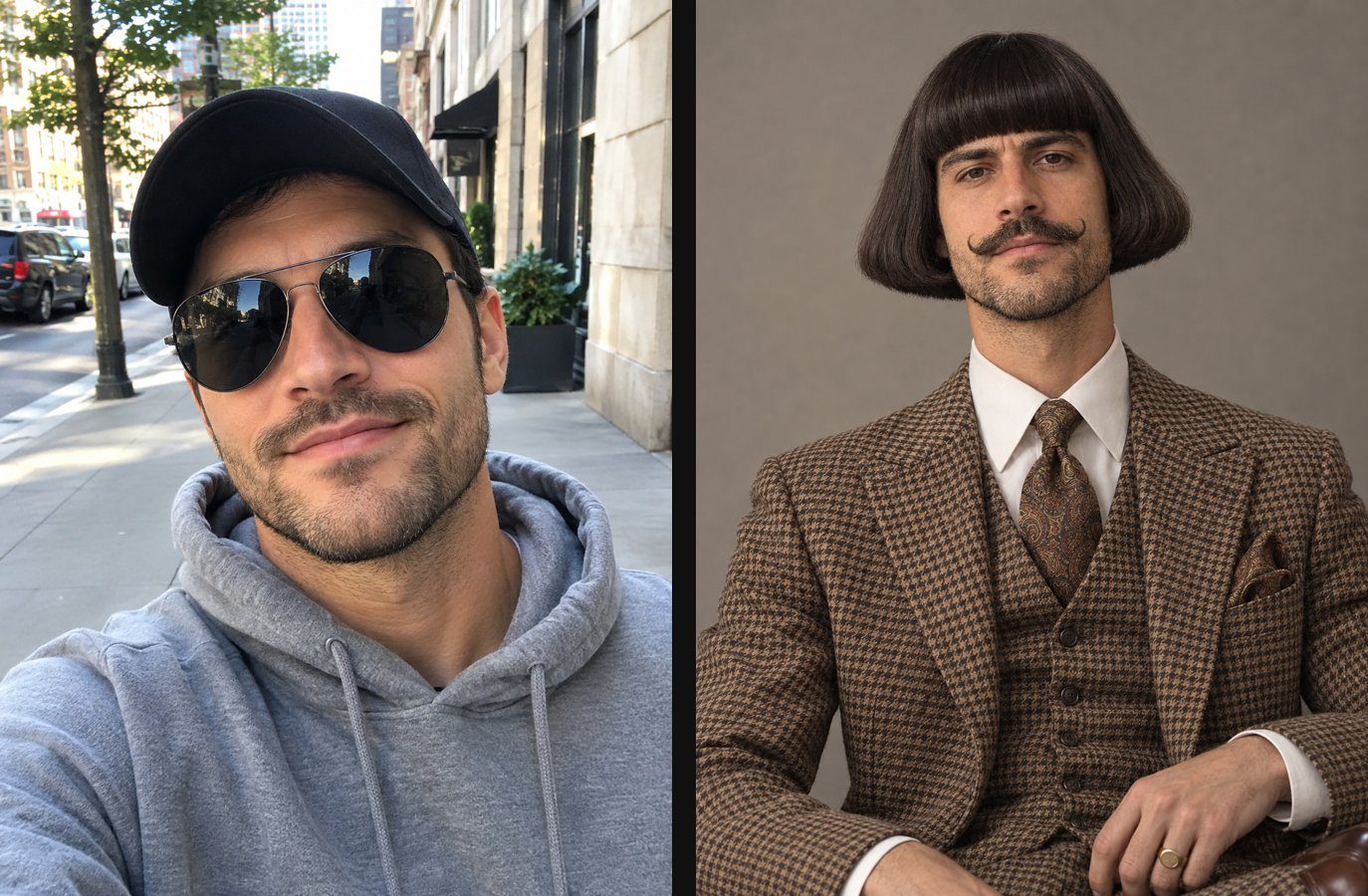
Starrd's own example character, before and after. Not Jean Phil, and not a real person.
The Jean, in Character Studio
One selfie. You with the Jean Phil look, plus a 4-view character sheet. 20 credits.
The Short Answer
- Open Character Studio and pick The Jean.
- Add one selfie. Cap and sunglasses are fine.
- Name it and tap Create character. A few minutes later you have your portrait and a character sheet.
It keeps your face and your own hair colour. It costs 20 credits.
What Makes the Jean Phil Look
Five things do all the work, and The Jean puts every one of them on you:
- The bob. Thick, glossy and flared out at the bottom, with a blunt fringe sitting right at the eyebrows.
- The mustache. A waxed handlebar, curled at the ends.
- The suit. Brown houndstooth, three pieces, with a patterned tie, a pocket square and a gold signet ring.
- The face. Dead serious. Deadpan. Never smiling.
- The shape. A long neck and a lanky build.
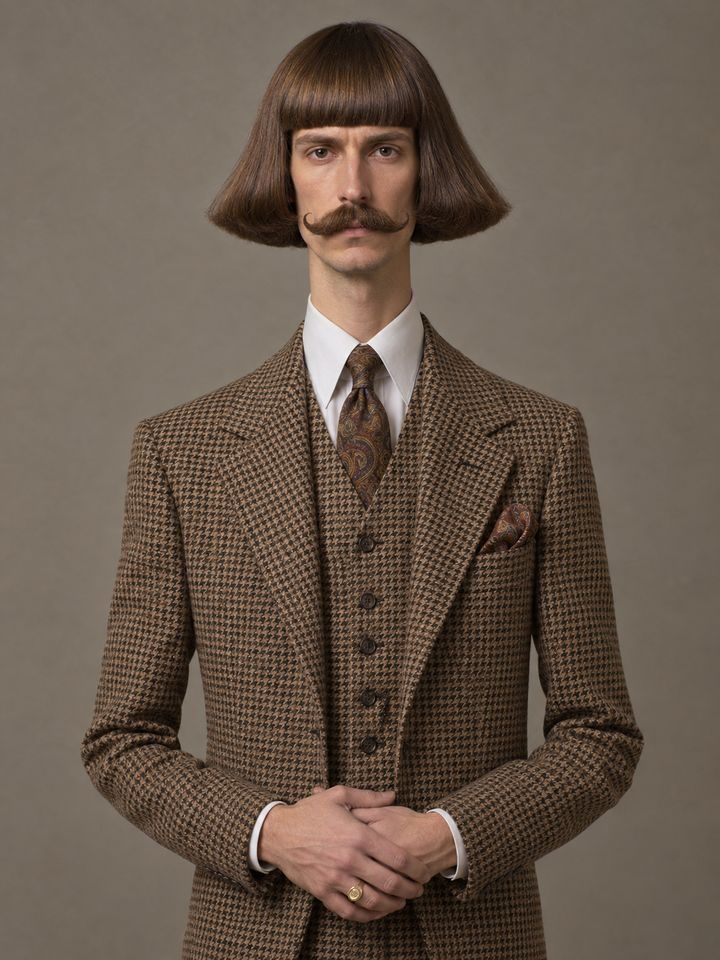
The Jean, as it appears in Character Studio. A Starrd example character, not Jean Phil and not a real person.
How to Turn Yourself Into Jean Phil, Step by Step
1. Open Character Studio. On the web at www.getstarrd.app/studio/character. It asks you to sign in first, then takes you straight there.
2. Pick The Jean. It's one of the character types at the top.
3. Add one selfie. Just one photo of you. More on which photo works best below.
4. Add notes if you want. This is optional. Use it for a prop ("holding a baguette") or a setting ("standing in a train station"). Leave it empty for the plain studio portrait.
5. Name it and create. Give your Jean a name and tap Create character. It takes a few minutes. You get your portrait and a 4-view character sheet.
What Photo Works Best
- Face the camera. A straight-on selfie gives the closest likeness.
- Good light. Daylight from a window or outside works well. Avoid dark rooms and strong shadows across the face.
- Just you. One person in the photo.
- Cap or sunglasses? Fine. They get removed, like in the before and after above. Your hair colour comes from what's visible, so if the cap hides all of it, a photo without one gives a more accurate colour.
If the result doesn't look enough like you, change the photo before anything else. A clearer, brighter, front-facing selfie fixes most likeness problems.
The Character Sheet, and Why It Matters
Along with your portrait you get a character sheet: the same character from the front, at three-quarters, from the side, and full body.
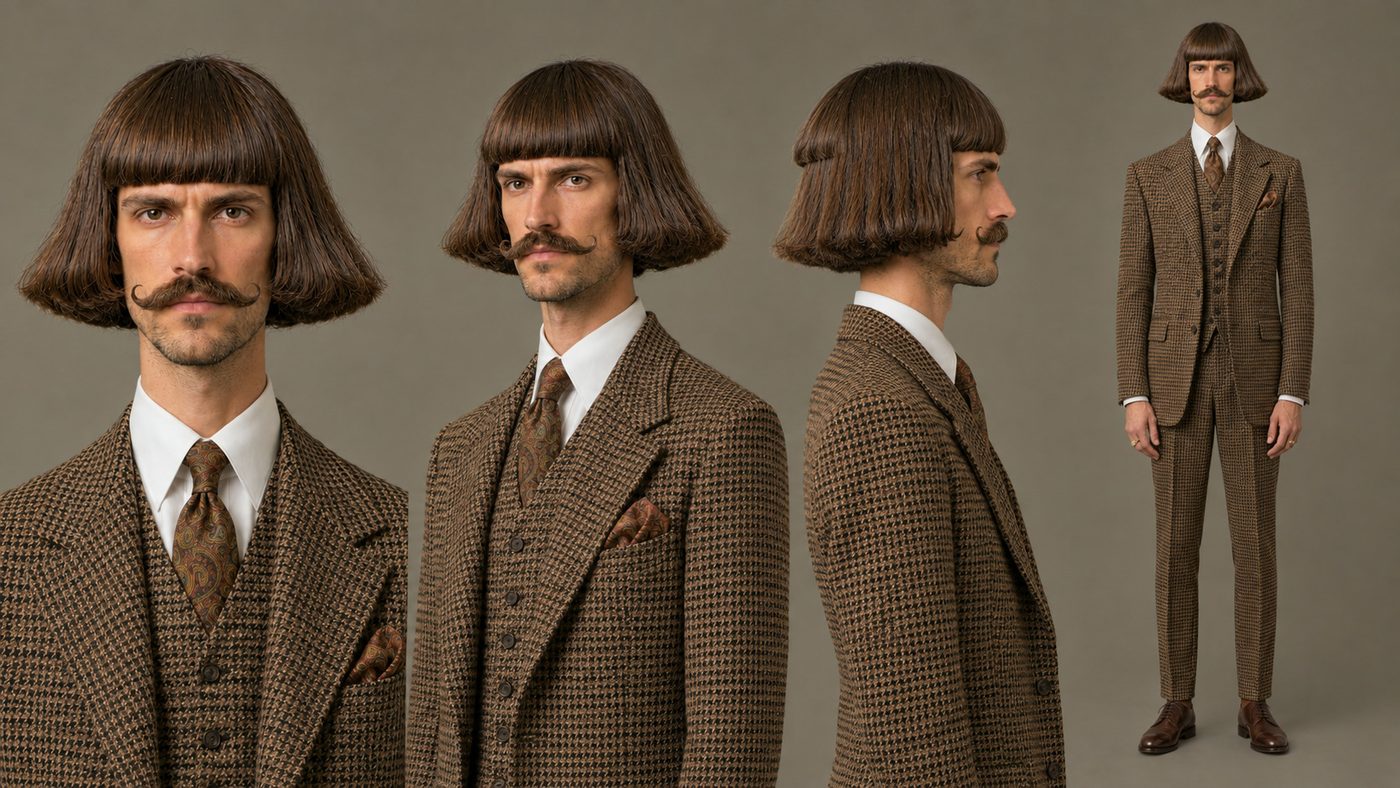
A 4-view character sheet for a different Starrd example character. Not Jean Phil, and not a real person.
Why bother? Because a character only works if it looks like the same person every time. Jean Phil is recognisable because the hair, mustache and suit never change. The sheet gives the video model your Jean from every angle, so when your character turns, walks or moves through a scene, the haircut, the suit and your face stay the same. More on this in how to keep an AI character consistent across videos.
Put Your Jean in a Video
Once your Jean exists, tap Put in a template and use it in any Starrd video template in place of a photo, or in Custom. Same character, any scene. A few that suit the look:
Starrd templates your Jean can star in.
The Gang Gang dance is the one tied to the Jean Phil trend. The full breakdown is in how to make the Gang Gang dance AI video.
Label it as AI when you post. TikTok, Instagram and YouTube all ask you to, and Starrd has no connection to Jean Phil, so don't present your video as his.
Related Reading
- How to Make Your Own AI Character Like Jean Phil: why the character works and how to build your own
- How to Make the Gang Gang Dance AI Video: the dance from the Jean Phil trend
- How to Make an AI Character of Yourself: other styles, same idea